Introduction to Linux
Introduction to Linux and how to navigate it
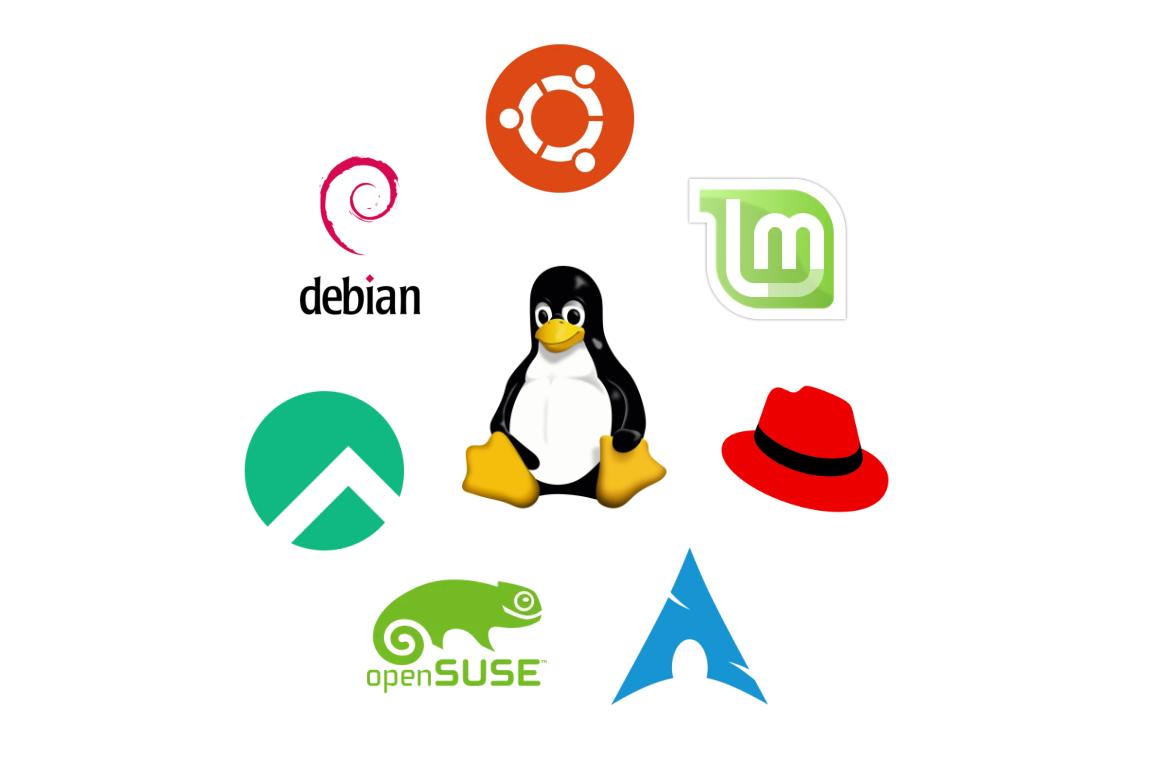
What is Linux?
Linux is an open source Operating Systems (OS) kernel. it is basically a program that talks to the hardware and shares the information between all the other programs.
An Operating System (OS) is the software that manages hardware resources (CPU, memory, disks, and network) and provides services so that applications can run.
Linux was created by Linus Torvalds in 1991 and is developed in the open by many contributors and companies.
Why Does Linux Matter?
There are a couple of reasons why Linux matters, and learning about them is important:
Open source
The source code is public and people can inspect, modify, and redistribute it under licenses. Free here means no cost and freedom to change it. Companies still sell paid support (such as RHEL and Ubuntu Pro).
Runs almost anywhere
Linux can be used on cloud virtual machines, web servers, containers, Android phones, routers, and smart TVs.
Automation friendly
Nearly everything is configured with text files and commands, so it can be scripted, versioned in Git, and automated.
Stable and transparent
Linux can run for months without rebooting, and its logs and tools let you see what the system is doing.
The foundation of modern infrastructure
Most importantly, Linux is the foundation for understanding modern infrastructure such as containers, Kubernetes, CI/CD, and most DevOps tools run on Linux.
What is Kernel?
Kernel is the core program of an OS. It sits between your hardware (CPU, memory, disks, network) and the programs. It basically the manager that other programs need.
What does it do?
Process Management
Decides which program run on CPU and for how long.
Memory Management
Gives each program its own memory space and keeps them separate.
Device Drivers
Talks to hardware so program don’t have to know the details of each device.
File Systems
Organizes how data is stored and read.
Networking
Handles sending and receiving data over network.
Security
Enforces permissions, so programs can’t freely access things it shouldn’t
Distributions (Distros)
Distributions is a complete, ready to use operating system built around the Linux kernel. Think of the kernel as the coffee bean, the essential ingredient and the distro is the finished cup of coffee.
What does a distribution provide?
- A tested kernel build.
- A package manager and its repositories with ready made software.
- An installer with default configuration.
- A release policy.
- A community or company that supports it.
Main Families
Check out the entire family tree Distrowatch
| Family | Examples | Package Format/Tool | Typical Use |
|---|---|---|---|
| Debian | Debian, Ubuntu, Linux Mint, Raspberry Pi OS | .deb / apt, dpkg | Servers, cloud images, desktops, container base images |
| Red Hat (RHEL) | RHEL, Rocky Linux, Fedora, CentOS | .rpm / dnf, rpm | Enterprise server |
| SUSE | SLES, openSUSE | .rpm / zypper | Enterprise, SAP |
| Arch | Arch Linux, Manjaro | .pkg.tar.zst / pacman | Enthusiast, DIY |
Release Models
| Model | How It Works | Example |
|---|---|---|
| Fixed/LTS | New major version roughly every 2 years, each supported for 5 years security fixes, Predictable and stable | Ubuntu LTS, Linux Mint LTS, Debian stable |
| Rolling | No versions, packages always up to date | Arch, openSUSE Tumbleweed |
| Fast Cycle/upstream | New release about every 6 months (Fedora), tests features for enterprise distros | Fedora, CentOS Stream |
Terminal, Shell, and Command Line
Words that are often mixed up:
| Term | Meaning |
|---|---|
| Terminal | The window where you type and read text. |
| Shell | The program inside the terminal that reads the commands and runs them (such as bash, zsh, fish) |
| Command Line (CLI) | The interface style, simply controlling the computer by typing commands instead of clicking |
| Desktop Environment | Optional graphical layer (such ash GNOME, KDE, XFCE) |
Anatomy of a Commands
1
2
3
4
5
6
7
$ ls -l /etc
  |  |  |
  |  |  +-- argument : what to act on (a file, directory, name...)
  |  +------ option   : changes behaviour (short -l, long --long)
  +--------- command  : the program to run

user@server:~$    <- '$' = normal user        root@server:~#    <- '#' = root (administrator)
Note:
- Linux is case sensitive:
test.txtandTest.txtare different - Spaces separate words: File with spaces, must be quoted
"this test.txt" - Suprise output: most commands output nothing when they succeed
- Getting help:
man(manual),cd --help(Option help) is your best friend.
Stages of Linux Boot Process
flowchart LR
    A["Firmware<br/>(BIOS / UEFI)"] --> B["Bootloader<br/>(GRUB)"]
    B --> C["Kernel +<br/>initramfs"]
    C --> D["systemd<br/>(PID 1)"]
    D --> E["Services<br/>and target"]
    E --> F["Login<br/>prompt"]

    classDef step fill:#2e6db4,stroke:#1f4e8c,color:#fff;
    class A,B,C,D,E,F step;
| Stage | What Happens |
|---|---|
| Firmware | Tests the hardware and finds the boot disk |
| Bootloader | GRUB loads the kernel and initramfs (temporary filesystem with drivers needed to reach the real disk) into memory |
| Kernel | Initializes hardware, mounts the root filesystem, and starts first process |
| systemd | The first user-space process. It starts everything else |
| Services | systemd starts services until it reaches the target |
| Login | Console login appears |
Why this matters: Understanding the boot flow helps when a server does not boot, because it gives you a clue about where to look.
Repositories
Repository its a place of centralized storage location used to organize, store, and host packages. Systems read its list from /etc/apt/sources.list and /etc/apt/sources.list.d/ (Debian family) or /etc/yum.repos.d/.
Each repo has a GNU Privacy Guard Key (GPG Key) which are used to encrypt, decrypt, and digitally sign data so package manager can verify the packages.
Other ways software is delivered
| Method | What it is | Guidance |
|---|---|---|
| Vendor Repository | The software vendor’s own apt/dnf repo (Docker, nginx, PostgreSQL) | For up to date releaases |
| Snap/Flatpak/AppImage | Bundled apps with their own libraries | Convenient for desktop apps |
| Container Image | Run with Docker or Kubernetes | Preferred for deploying applications |
Installing, Updating, and Removing Packages
The day to day commands for updating, searching, inspecting, and installing:
1
2
3
4
5
6
7
8
9
10
11
12
13
14
# refresh local package index
$ sudo apt update

# find packages by keyword
$ apt search nginx

# description, version, dependencies, size
$ apt show nginx

# installed vs candidate version and which repo it comes from
$ apt-cache policy nginx

# install package
$ sudo apt install nginx
Packages Command Cheatsheet
| Task | Debian/Ubuntu | RHEL/Rocky |
|---|---|---|
| Refresh Package Index | apt update | dnf makecache |
| Search | apt search <package> | dnf search <package> |
| Show Details | apt show <package> | dnf info <package> |
| Install | apt install <package> | dnf install <package> |
| Instal Multiple | apt install <package1> <package2> | dnf install <package1> <package2> |
| Install from Local | apt install ./<package>.deb | dnf install ./<package>.rpm |
| Upgrade Packages | apt upgrade | dnf upgrade |
| Remove Package (Keep Config) | apt remove <package> | dnf remove <package> |
| Remove Package (Including Config) | apt purge <package> | Auto purge on remove (if not modified) |
| Remove Unused Dependencies | apt autoremove | dnf autoremove |
| List Installed Packages | apt list --installed | dnf list installed |
| Clean Download Cache | apt clean | dnf clean all |
How to Start Practicing Linux?
There are a several ways you can start practicing Linux right now, shown below:
| Option | How? | Limits |
|---|---|---|
| Local VM (Recommended) | VirtualBox, VMware Workstation, QEMU+VMM | Needs some spare resources |
| WSL (Windows) | wsl --install -d ubuntu | Some kernel/network features differ |
| Cloud VM | AWS, Azure, GCP | Costs money if left unchecked |
| Container | docker run -it ubuntu:24.04 bash | Shares host kernel |
| Bootable USB/Dual Boot | Distro desktop installer, Portable Images | Risky if partitioning goes wrong |
First Minutes on Linux
1
2
3
4
5
6
7
8
9
10
11
12
13
14
15
16
17
18
19
20
21
22
23
24
25
26
27
28
29
30
31
32
33
# which user am I?
$ whoami

# what machine is this?
$ hostname

# which distribution and version?
$ cat /etc/os-release
$ lsb_release -a

# which kernel version?
$ uname -r

# how long up, and the load average
$ uptime

# memory
$ free -h

# disk space
$ df -h

# IP addresses
$ ip -br addr

# some running processes
$ ps aux | head

# what is in my home directory?
$ ls -la ~

# what was recently typed here?
$ history | tail
Practice
sudo is fine.| Task | Command (Debian/Ubuntu) | Result |
|---|---|---|
| Refresh the package index | apt update only refreshes the local list of available packages. It does not install or upgrade anything. | |
Install the package nginx | apt install <package> downloads the package and its dependencies from the repository and installs them. | |
Remove nginx but keep its configuration files | apt remove deletes the program but leaves its configuration files behind, so reinstalling later keeps your settings. | |
Remove nginx including its configuration files | apt purge removes the package and its configuration files as well. | |
| List all installed packages | apt list --installed prints every package currently installed on the system. | |
| Clear the downloaded package cache | apt clean deletes the downloaded .deb files that apt keeps in its cache. |
Glossary
| Term | Detail |
|---|---|
| Kernel | Core of the OS, manages CPU, memory, devices, filesystems, networking |
| Distribution (Distro) | Kernel, package manager and defaults that are packaged as a usable OS |
| Shell | Program that interprets typed commands (bash, zsh) |
| Package | Archive with software files, metadata, scripts, and dependencies |
| Daemon/service | Background program, usually started at boot |
| root | Administrator account (UID 0) |
| sudo | Runs command with elevated privileges |
| Mount Point | Directory where filesystem is attached to the tree |
| LTS | Long Term Support, a release with security updates for years |
| Open Source | Source code is available |
| Container | Isolated process group sharing the host kernel |
Hands-On Cases
Scenario: You’ve just been given access to a Linux machine. Your job is to create a small project workspace, add some files, and organize them using only the terminal.
Try each step yourself first, then open the solution to check.
Step 1: Find out where you are
Print your current directory and list what’s in it.
Show solution
1
2
3
4
5
# print the current working directory
pwd

# list the files here
ls
pwdmeans “print working directory”. Right after login you are normally in your home directory (/home/yourname).
Step 2: Create the workspace
Create a directory called linux-lab in your home folder, with three subdirectories inside it: docs, backup and scripts. Then move into linux-lab.
Show solution
1
2
3
4
5
6
7
8
9
10
11
12
13
# create the folder and its subfolders in one command
mkdir -p ~/linux-lab/{docs,backup,scripts}

# alternatively doing it one by one
mkdir -p ~/linux-lab/docs
mkdir -p ~/linux-lab/backup
mkdir -p ~/linux-lab/scripts

# move into the workspace
cd ~/linux-lab

# check the result
ls
-pcreates parent directories as needed and doesn’t complain if they already exist. The{docs,backup,scripts}part is shell brace expansion, which produces three paths from one expression.
Step 3: Create empty files
Create three empty files in linux-lab: notes.txt, todo.txt and draft.txt.
Show solution
1
2
3
4
5
# create empty files
touch notes.txt todo.txt draft.txt

# list with details to confirm they exist (size 0)
ls -l
touchcreates an empty file if it doesn’t exist. If it does exist, it only updates the modification time.
Step 4: Put content in a file
Write the line Hello Linux into notes.txt, then add a second line My first workspace. Display the file to verify.
Show solution
1
2
3
4
5
6
7
8
# > overwrites the file with this text
echo "Hello Linux" > notes.txt

# >> appends to the end of the file
echo "My first workspace" >> notes.txt

# show the file contents
cat notes.txt
Be careful with
>. It replaces everything in the file, while>>keeps the existing content and adds to it.
Step 5: Copy a file
Copy notes.txt into the backup directory. Keep the original where it is.
Show solution
1
2
3
4
5
# copy the file into backup/
cp notes.txt backup/

# confirm both copies exist
ls notes.txt backup/
cp source destinationleaves the original untouched.
Step 6: Rename and move a file
Rename draft.txt to report.txt, then move it into the docs directory.
Show solution
1
2
3
4
5
6
7
8
# rename: mv with a new name in the same directory
mv draft.txt report.txt

# move into docs/
mv report.txt docs/

# confirm
ls docs/
mvis used for both renaming and moving. It just changes the file’s name or location, and doesn’t leave a copy behind.
Step 7: Copy a whole directory
Copy the entire docs directory into backup.
Show solution
1
2
3
4
5
# -r means recursive: needed to copy directories
cp -r docs backup/

# check what is inside backup
ls -R backup
Without
-r,cprefuses to copy a directory.
Step 8: Clean up
Delete todo.txt, because you no longer need it.
Show solution
1
2
3
4
5
# delete the file
rm todo.txt

# confirm it is gone
ls
rmis permanent. There is no trash bin in the terminal, so double-check the filename before you press Enter. To be asked first, userm -i todo.txt.
Step 9: Check your final result
Show the whole workspace as a recursive listing.
Show solution
1
2
# list everything under the current directory
ls -R
Your workspace should look roughly like this:
1
2
3
4
5
6
7
8
9
linux-lab/
├── backup/
│   ├── docs/
│   │   └── report.txt
│   └── notes.txt
├── docs/
│   └── report.txt
├── scripts/
└── notes.txt
Finish
Thank you for reading or following until the end!