Familiarizing Linux Filesystems
Understand how Linux organizes, stores, and manages files from the directory tree to inodes and links.
Big Tree
Linux organizes everything in a single tree that starts at / (called “root”, which is different from root as user). There is no C:\ or D:\ letters, a second disk, a USB stick, or a network share basically everyhing in a big tree.
This layout follows the Filesystem Hierarchy Standard (FHS), the same layout across distros. That’s why a user who learns one distro can navigate the same way.
Everything is a file. Devices, running processes, and even kernel settings are a files you can read and write.
Directories**
| Path | What is this? |
|---|---|
/bin | Directory that contains binaries, which is some application that you can run (like ls command). |
/boot | Directory that contains files required for starting your system. |
/dev | Directory that contains device files (when you plug a USB it will pop up here as a raw block device). |
/etc | Directory that contains everything that you can configure. |
/home | Directory for your user. |
/lib | Directory where libraries files live that applications can use. |
/media | Directory where external storage will be automatically mounted. |
/mnt | Directory where you would manually mount storage devices or partition. |
/opt | Directory for your add-on or third party software. |
/proc | Directory that contains informations of your computer. |
/root | Directory of the superuser (Administrator). |
/run | Directory for your temporary systems data. |
/sbin | Directory like /bin but for superuser. |
/usr | Directory that is a secondary hierarchy for read only user data. |
/srv | Directory that contains data for servers (like web server or html files would go here /srv/www). |
/tmp | Directory that contains temporary files. |
/var | Directory that holds all data that changes frequently during normal use. |
Why this matters: if you’re familiar with it, you can guess where to look for a problem before you’ve ever touched a specific server. A service crashing? Check its config in
/etcand its output in/var/log.
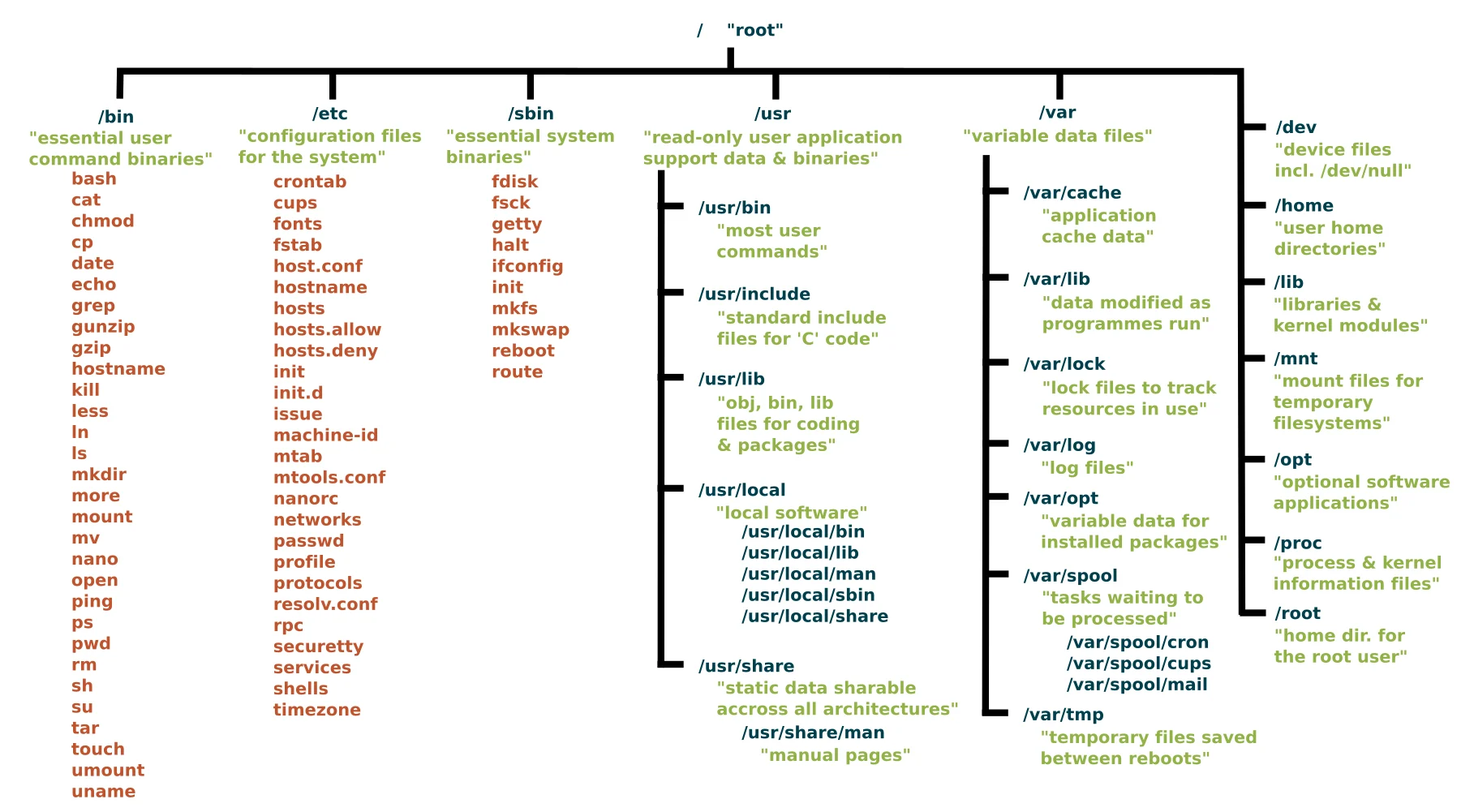 Check out the detail of the directory tree HERE
A Quick Word on Filesystem Types
The directories above live on top of an actual filesystem format, the way data is structured on disk. The most common ones you’ll meet:
| Filesystem | Notes |
|---|---|
ext4 | The long-time Ubuntu/Debian default. Mature and reliable. |
xfs | Common on RHEL/Rocky. Great with very large files, can grow but not shrink. |
btrfs | Supports snapshots and built-in volume management. |
You rarely need to think about this day to day, it matters mainly when creating a new filesystem (covered in the Storage module) or reading kernel documentation such as the Linux kernel filesystem docs.
1
2
3
4
5
6
# Command to check
df -T /

df -Th # all mounted filesystems types

lsblk -f # per device view
Inodes Are The Real Thing
A filename is just a label pointing at an inode, a record holding the file’s metadata (owner, permissions, timestamps, and where its data blocks live on disk). The name and the data are two separate things.
This are important because, two different names can point to the same inode.
| Hard link | Symlink (Shortcut) | |
|---|---|---|
| Points to | Points directly to the same inode as the original | Stores a path to the target |
| Original deleted? | Data survives (inode still has a name) | Broken Link (path no longer resolves) |
| Link a folder? | No | Yes |
| Cross drives? | No | Yes |
| Command | ln target linkname | ln -s target linkname |
1
2
3
4
5
6
# Command to check files data/metadata/inode
ls -i <filename>

stat <filename>

df -i / # inode usage on a file system
Note: hard links cannot cross filesystems or point to directories; symlinks can do both. When you’re stuck, just use symlink.
Key Commands Cheat Sheet
| Command | What it does |
|---|---|
pwd, cd, ls -lah | Where am I, move around, list with sizes and hidden files |
find PATH -type f -name '*.log' -size +1M | Search by name, type, size (-mtime -7 for age) |
cp -a, mv, rm -i | Copy keeping metadata, move/rename, remove with a confirmation prompt |
ln, ln -s | Create a hard link, create a symbolic link |
stat, ls -li | Show inode number, link count, permissions, timestamps |
man <command>, <command> --help, tldr <command> | Built-in documentation, look things up instead of memorizing |
Practice
sudo is fine.| Task | Command | Result |
|---|---|---|
| Print the current working directory | pwd (print working directory) shows the absolute path of where you currently are. | |
| List all files, including hidden ones, in long format with human-readable sizes | -l gives the long/detail format, -a shows hidden (dotfiles) entries, and -h prints sizes like 1.2M instead of raw bytes. | |
| Find all .log files under /var/log larger than 1 MB | -type f restricts results to regular files, -name filters by filename pattern, and -size +1M keeps only files bigger than 1 MB. | |
| Show a file’s inode number and hard link count | ls -li adds the inode number as the first column. stat filename shows the same inode number plus the link count, permissions, and timestamps in more detail. | |
| Create a symbolic link named link.txt pointing to target.txt | ln makes hard links by default; the -s flag switches it to a symbolic (soft) link that stores the path target.txt instead of sharing its inode. |
Hands-On Cases
Scenario: You’ve been asked to investigate disk usage on a server, prove that a backup was copied safely, and understand why a coworker’s symlink suddenly broke.
Try each step yourself first, then open the solution to check.
Case 1: Find the largest log files
Goal: List every .log file under /var/log larger than 1 MB, biggest first.
Show solution
1
2
3
4
5
# create a test file first if your VM has few large logs
sudo fallocate -l 5M /var/log/lab-test.log

# find, then sort numerically, then make the sizes human readable
sudo find /var/log -type f -name "*.log" -size +1M -printf '%s\t%p\n' | sort -rn | numfmt --to=iec --field=1
Command Explanation
| Part | What it does |
|---|---|
sudo find /var/log | Search inside /var/log |
-type f | Only files, not folder |
-name "*.log" | Wildcards with files ending with .log |
-size +1M | Files bigger than 1 MB |
-printf '%s\t%p\n' | Print size in bytes, then tab, then the path |
sort -rn | Pipe the output to sort numerically, reverse (biggest first) |
numfmt --to=iec --field=1 | Convert column 1 (the byte count) into human readable form |
1
2
# cleanup
sudo rm /var/log/lab-test.log
Case 2: Prove a backup copy is identical
Goal: Copy /etc/ssh to ~/backup preserving ownership, permissions, and timestamps, then prove the copy matches.
Show solution
1
2
3
mkdir -p ~/backup
sudo cp -a /etc/ssh ~/backup/
sudo diff -r /etc/ssh ~/backup/ssh && echo "IDENTICAL"
Command Explanation
| Part | What it does |
|---|---|
mkdir -p <name> | create a directory |
cp -a <file1> <file2> | copy a file with the option of archive |
diff -r <file1> <file2> && echo "IDENTICAL" | differentiate file1 with file2 and output the word “IDENTICAL” |
1
2
# cleanup
sudo rm -rf ~/backup
Case 3: Hard link vs. symbolic link
Goal: Create a hard link and a symlink to the same file, delete the original, and see which one still works.
Show solution
1
2
3
4
5
6
7
8
9
10
11
mkdir ~/linklab && cd ~/linklab
echo "hello" > original.txt
ln original.txt hard.txt      # hard link
ln -s original.txt soft.txt   # symbolic link

ls -li   # hard.txt shares the inode number with original.txt; link count is 2

rm original.txt

cat hard.txt   # prints "hello", the data still has one remaining name
cat soft.txt   # cat: soft.txt: No such file or directory (dangling link)
The hard link still works because the inode still has one name left. The symlink only stored the path
original.txt, which no longer exists, so it dangles.ls -lshows a broken symlink in red on most terminals.
1
2
# cleanup
cd ~ && rm -rf ~/linklab
Case 4: Create a partition and mount it (XFS)
Goal: Format a “disk” with the XFS filesystem and attach it to the tree at a mount point.
This uses a loop file, a regular file that Linux can treat as if it were a whole disk. It’s the safe way to practice without touching real hardware. On a real second disk, swap the loop device for the actual device name (e.g.
/dev/sdb1), after confirming it withlsblkfirst, formatting destroys data.
Show solution
1
2
3
4
5
6
7
8
9
10
11
12
13
14
# 1. Install the XFS tools
sudo apt install -y xfsprogs

# 2. Create a 1 GB file and attach it as a loop device (acts like a disk)
sudo truncate -s 1G /var/lib/lab-disk.img
NEWDISK=$(sudo losetup -f --show /var/lib/lab-disk.img)
echo "$NEWDISK"          # e.g. /dev/loop20

# 3. Format it with XFS (-f forces formatting and skips warnings)
sudo mkfs.xfs "$NEWDISK" -f

# 4. Create a mount point and mount it
sudo mkdir -p /mnt/lab-data
sudo mount "$NEWDISK" /mnt/lab-data
A mount point is just an empty directory that becomes the “entry door” into another filesystem once you
mountsomething onto it. Anything already inside that directory is hidden (not deleted) while the mount is active.
1
2
3
4
5
# 5. Verify: it should show up like any other filesystem
df -hT /mnt/lab-data

echo "hello from XFS" | sudo tee /mnt/lab-data/test.txt
cat /mnt/lab-data/test.txt
1
2
3
4
5
# cleanup: unmount, detach the loop device, remove the file
sudo umount /mnt/lab-data
sudo losetup -d "$NEWDISK"
sudo rm -f /var/lib/lab-disk.img
sudo rmdir /mnt/lab-data
Going further: a real, persistent setup would add a line to
/etc/fstabreferencing the disk’s UUID (fromblkid) so it mounts automatically on every boot.
Glossary
| Term | Detail |
|---|---|
| FHS | Filesystem Hierarchy Standard, the convention for where things live |
| Inode | Metadata record (owner, permissions, timestamps, data location) that a filename points to |
| Hard link | Another filename pointing to the same inode |
| Symbolic (soft) link | A small file that stores a path to another file |
| Mount point | A directory where a filesystem is attached to the tree |
| Virtual filesystem | A filesystem generated on the fly by the kernel (/proc, /sys, /dev) |
| Dangling link | A symlink whose target no longer exists |
| Partition | A defined slice of a disk that a filesystem can be created on |
| Loop device | A regular file made to behave like a block device (disk) for testing |
Finish
Thank you for reading or following until the end!